Learning how to turn off your Samsung Galaxy A56 is a basic but essential skill for every user. Whether you’re troubleshooting, conserving battery, or simply giving your device a break, knowing the proper steps ensures you can power down your phone quickly and safely.
With the evolution of smartphone design, the process to turn off the Samsung A56 has changed slightly compared to older models, so it’s helpful to familiarize yourself with the latest methods.

The importance of knowing how to turn off your Samsung A56
Turning off your phone can help resolve minor software glitches, refresh system resources, and extend battery longevity.
For situations like troubleshooting, traveling, or storing your device for extended periods, shutting down the phone properly is crucial to avoid unnecessary battery drain or potential data corruption.
Best Methods to Turn Off your Samsung Galaxy A56
Modern Samsung devices, including the Galaxy A56, offer several ways to power down. These options are designed to suit different user habits and situations, from those who prefer physical buttons to those who rely on touch navigation.
Below, you’ll find the three most reliable methods to turn off Samsung A56, each explained in detail for ease of use.
1. Using Hardware Buttons
- Press and hold both the Side (Power) button and the Volume Down button at the same time.
- Hold until the power menu appears on the screen.
- Tap Power off.
- Confirm by tapping Power off again.

This method is quick and reliable, especially if your screen is unresponsive or you can’t access the software menus.
It’s also helpful in situations where you need to restart or force a shutdown. If you find it inconvenient to use two buttons, you can adjust the button settings (explained in Method 3) to make the process even simpler.
2. Using the Quick Settings Panel
- Swipe down from the top right corner of the screen to open the Quick Settings panel.
- Tap the Power icon at the top right (next to the settings/gear icon).
- Select Power Off.
- Confirm by tapping Power off again.
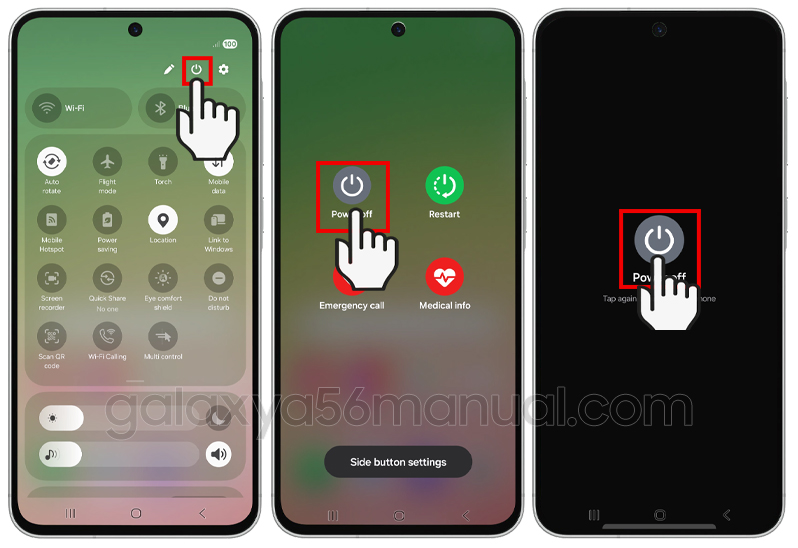
This method is especially useful if you’re already using your phone and want a seamless way to power down without fiddling with buttons.
It’s also ideal for users who might have difficulty pressing multiple buttons at once or prefer a touch-based approach. The Quick Settings panel is accessible from any screen, making it a convenient option in most situations.
3. Remap the Side Button (Optional Customization)
Samsung allows you to customize the function of the side (power) button, giving you more control over how you turn off your Galaxy A56. If you prefer to use just the Side button (without the Volume Down button):
- Go to Settings.
- Scroll to Sdvanced features.
- Tap on the Side button.
- Under the Press and Hold section, select the Power Off menu.
- Now, a long press on the side button will bring up the power menu, allowing you to turn off the device easily.
This customization is perfect for users who want a more traditional experience or find the default button combination cumbersome.
Once set, you no longer need to press both the side and volume down buttons together. Just a long press on the side button will suffice, streamlining the shutdown process and making it more intuitive.
What should I do if my Samsung Galaxy A56 won’t turn off?
If your Samsung Galaxy A56 won’t turn off using the normal methods, try the following steps:
1. Force Restart the Device
- Press and hold the Power (Side) button and the Volume Down button at the same time.
- Keep holding both buttons for about 7–10 seconds, until the screen goes dark and the Samsung logo appears. This will force the device to restart, which is helpful if the phone is frozen or unresponsive.
2. If the Device Is Completely Unresponsive
- If neither the force restart nor the on-screen power menu works, let the battery drain completely. Once the device shuts down, recharge it and try turning it on again.
3. Possible Hardware Issues
- If your phone still cannot be turned off or restarted, it could indicate a hardware problem (such as a faulty power button or internal component). In this case, contact Samsung support or visit an authorized service center for further assistance.
These steps should resolve most issues with powering off your Samsung Galaxy A56. If the problem persists, professional repair may be necessary.
Knowing how to turn off a Samsung A56 is a fundamental aspect of device management that every user should master.
With multiple methods, you can choose the approach that best fits your needs. Each method is designed to be user-friendly and efficient, ensuring that you can power down your device smoothly in any situation.
4 thoughts on “How to Properly Shut Down Your Samsung Galaxy A56”